



Online surveys are powerful tools for collecting valuable data from customers, employees, or market research participants. Whether you’re a small business owner looking to understand customer preferences or an individual seeking feedback on a project, SurveyMonkey offers an intuitive platform to create professional surveys without technical expertise. This comprehensive guide will walk you through the entire process of creating, distributing, and analyzing online surveys using SurveyMonkey.
Why Use Online Surveys for Data Collection?
Before diving into the mechanics of creating a survey, let’s understand why online surveys have become essential tools for data collection:
Benefits of Online Surveys
- Cost-effective compared to traditional research methods
- Faster data collection and real-time results
- Broader reach to diverse audiences
- Higher response rates through multiple distribution channels
- Automated data analysis and visualization tools
Why Choose SurveyMonkey?
- User-friendly interface requiring no technical skills
- Extensive template library for various survey types
- Powerful question logic and skip patterns
- Robust analysis tools with visual reporting
- Free basic plan with upgrade options for advanced features
Ready to start collecting valuable feedback?
Create your first survey in minutes with SurveyMonkey’s intuitive platform.
Create Your Free SurveyStep 1: Creating a SurveyMonkey Account
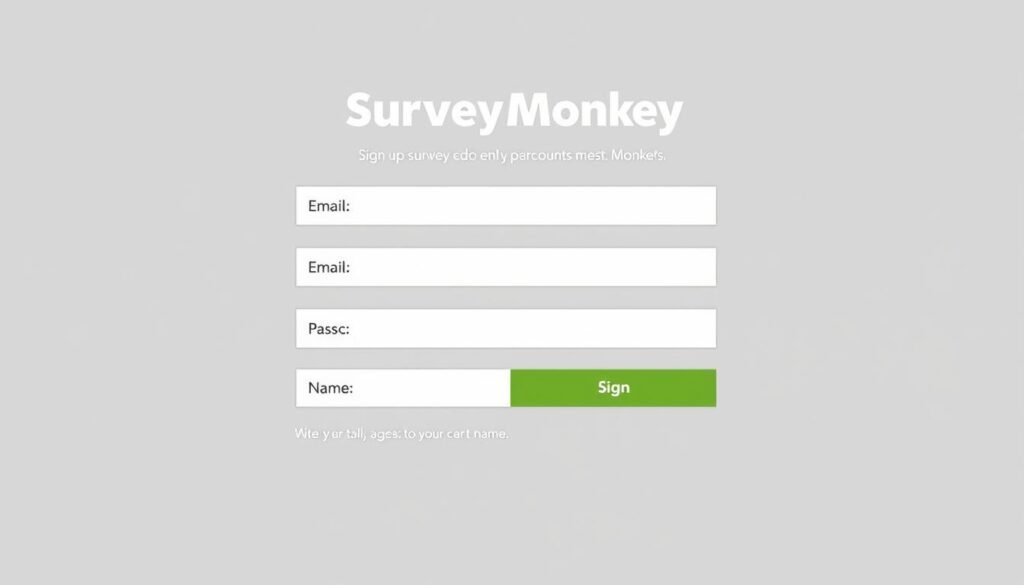
To create online survey SurveyMonkey, you’ll first need to set up an account. The process is straightforward and takes just a few minutes:
- Visit the SurveyMonkey website
- Click the “Sign Up” button in the top-right corner
- Enter your email address, create a password, and provide your name
- Select your account type (Personal or Business)
- Choose between the free Basic plan or a paid subscription
- Complete the registration process by verifying your email
Pro Tip: The free Basic plan allows you to create unlimited surveys with up to 10 questions and 40 responses per survey. For more extensive research needs, consider upgrading to a paid plan that offers unlimited questions, responses, and advanced features.
Step 2: Creating Your First Survey
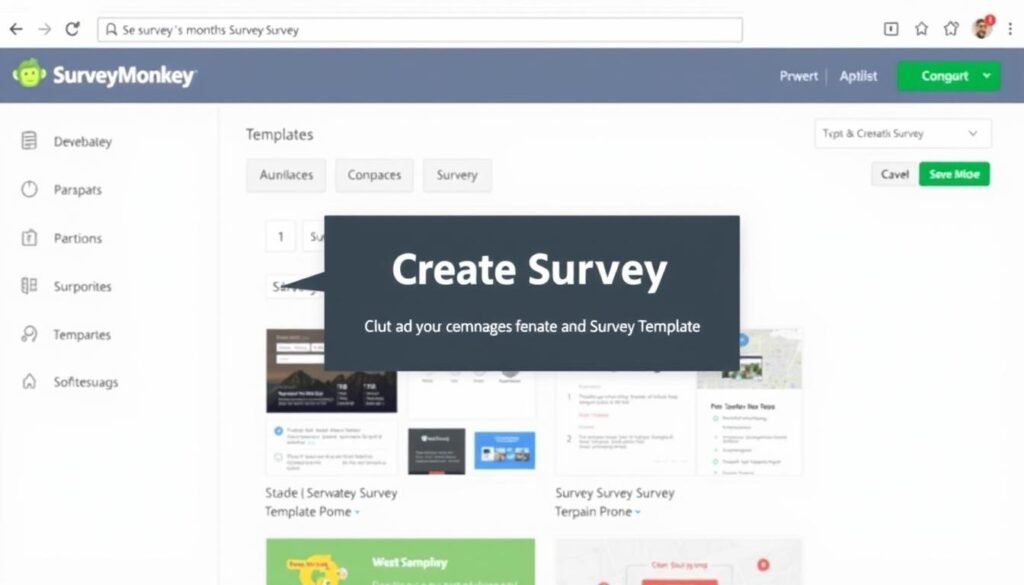
Once you’ve set up your account, you’re ready to create your first survey. SurveyMonkey offers two approaches: starting from scratch or using a template.
Option 1: Starting from Scratch
- Log in to your SurveyMonkey account
- Click the green “+ Create Survey” button in the top-right corner
- Select “Start from scratch”
- Enter a survey title and choose a category (optional)
- Click “Create Survey” to begin building your questions
Option 2: Using a Template
- Click the “+ Create Survey” button
- Browse the template library by category or use the search function
- Preview templates to find one that matches your needs
- Select your preferred template
- Customize the template name if desired
- Click “Use this template” to begin customizing
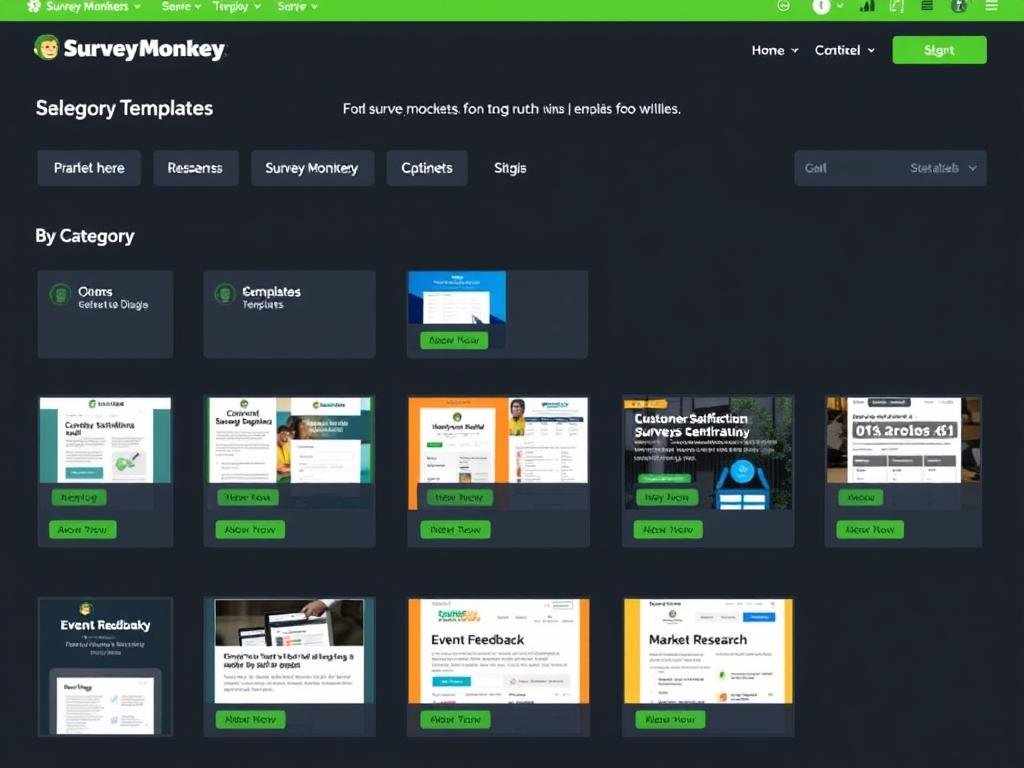
Templates save time and provide expert-designed questions relevant to specific survey goals. For beginners, templates offer a valuable starting point that can be customized to your specific needs.
Step 3: Adding and Formatting Questions
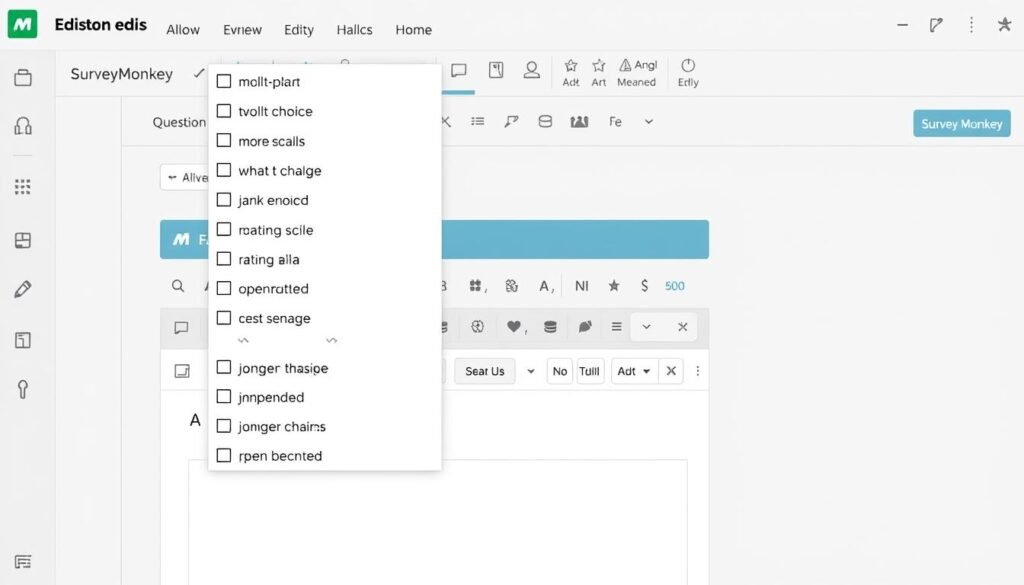
The heart of any effective survey is its questions. SurveyMonkey offers various question types to collect different kinds of data. Understanding these options helps you design a survey that gathers exactly the information you need.
Common Question Types
Multiple Choice
Allows respondents to select one or more options from a predefined list. Ideal for gathering specific preferences or demographic information.
Example: “Which of our products have you purchased? (Select all that apply)”
Rating Scales
Measures attitudes or opinions on a numeric scale. Perfect for satisfaction surveys or product evaluations.
Example: “On a scale of 0-10, how likely are you to recommend our service to others?”
Open-Ended Questions
Allows free-form text responses for qualitative feedback. Best for gathering detailed opinions or suggestions.
Example: “What improvements would you like to see in our product?”
Adding Questions to Your Survey
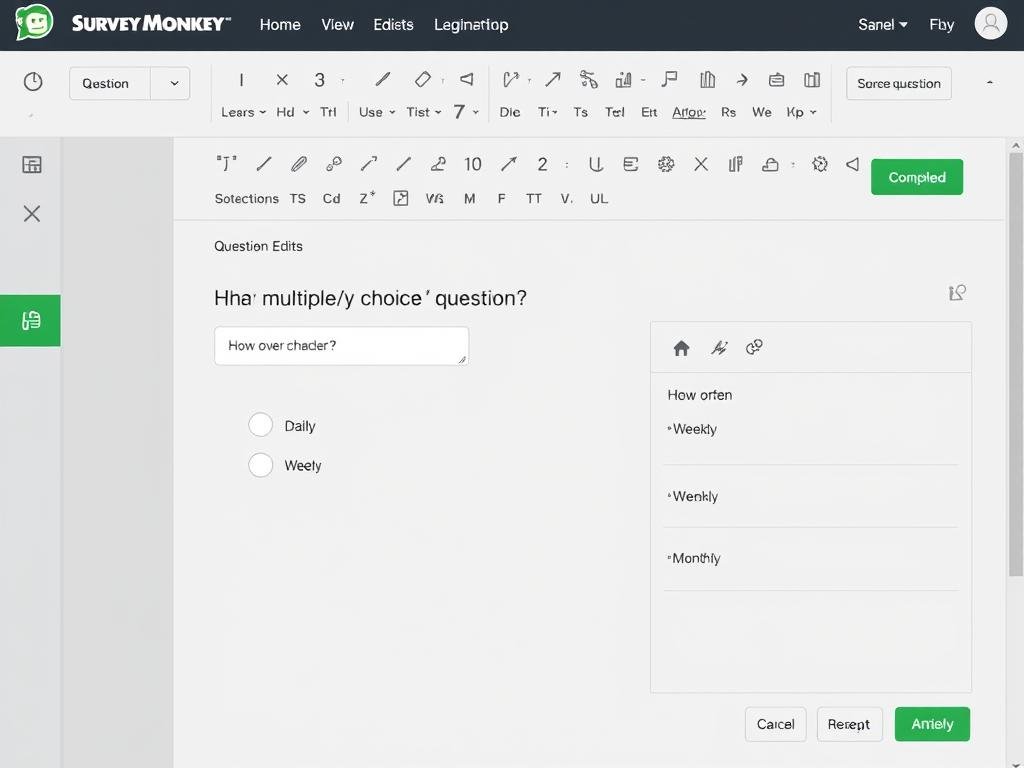
- In the survey builder, click “+ Add Question” at the bottom of your survey
- Select the question type from the dropdown menu
- Enter your question text in the “Question Text” field
- Add answer choices if applicable
- Configure additional options like requiring an answer or adding logic
- Click “Save” to add the question to your survey
Formatting and Organizing Questions
Proper organization improves the respondent experience and increases completion rates:
- Group related questions on the same page to maintain context
- Use page breaks to separate different topics or sections
- Add section headers to provide context and improve navigation
- Include progress bar to show respondents how much of the survey remains
- Limit questions per page to avoid overwhelming respondents
Ready to design your perfect survey?
SurveyMonkey offers 25+ question types to help you collect exactly the data you need.
Sign Up for SurveyMonkeyStep 4: Customizing Survey Design and Branding
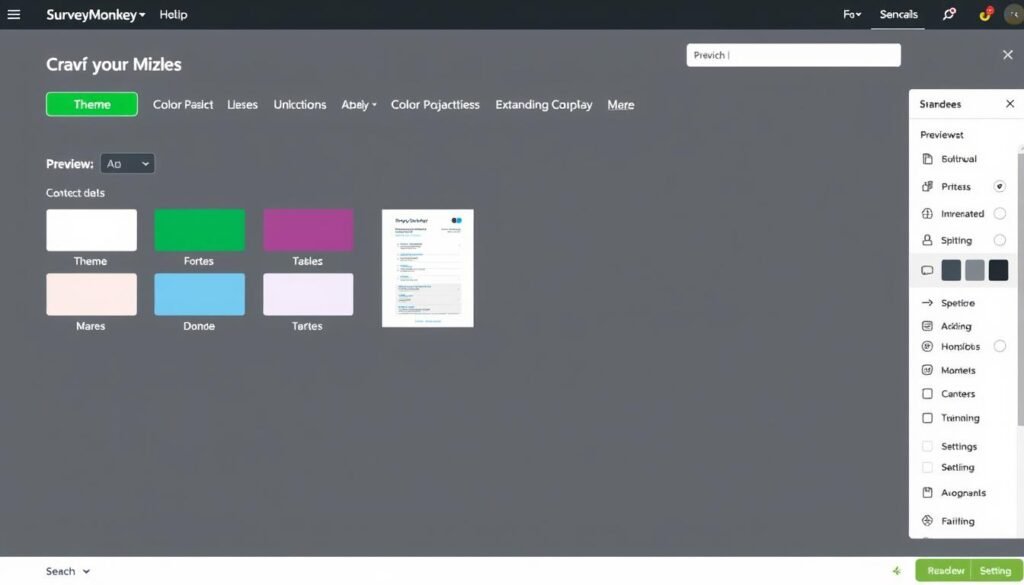
A professional-looking survey enhances credibility and can improve response rates. SurveyMonkey allows you to customize the appearance of your survey to match your brand identity:
Design Elements You Can Customize
Theme and Colors
- Choose from pre-designed themes
- Customize color scheme to match your brand
- Adjust button colors and survey background
- Modify font styles and sizes
Branding and Logo
- Add your company logo to the header
- Customize the survey footer
- Remove SurveyMonkey branding (paid plans)
- Add a custom thank you page
How to Customize Your Survey Design
- In the survey builder, click the “Design Survey” tab at the top
- Select a theme from the available options
- Click “Customize Theme” to make specific adjustments
- Upload your logo by clicking “Logo” in the customization panel
- Adjust colors, fonts, and other design elements as desired
- Preview your design on both desktop and mobile views
- Save your customizations when finished
Pro Tip: Keep your design clean and professional. Overly complex designs can distract respondents from the questions. Aim for consistency with your brand while maintaining readability and ease of use.
Step 5: Adding Survey Logic and Advanced Features
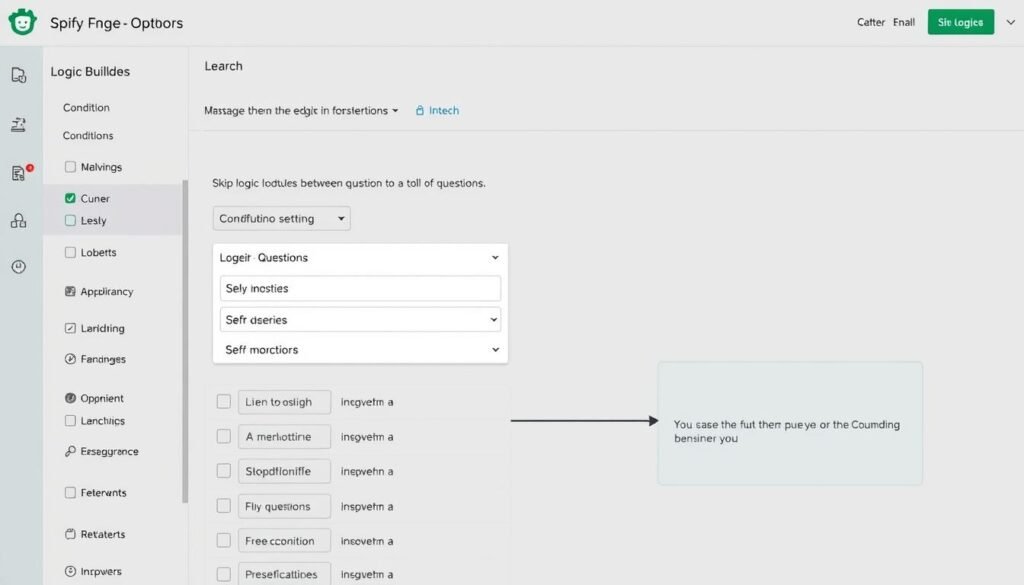
Survey logic allows you to create dynamic surveys that adapt to respondents’ answers. This creates a more personalized experience and helps you gather more relevant data.
Key Logic Features in SurveyMonkey
Skip Logic
Directs respondents to different questions based on their answers. This prevents irrelevant questions and shortens survey completion time.
Example: If someone answers “No” to “Have you used our product?”, skip to questions about why they haven’t tried it.
Question Logic
Shows or hides specific answer choices based on previous responses. This creates a more tailored survey experience.
Example: Only show product-specific questions to respondents who indicated they’ve purchased those products.
Page Logic
Directs respondents to different pages based on their answers. This helps organize complex surveys with multiple paths.
Example: Send B2B customers to business-specific questions and individual consumers to consumer-focused questions.
How to Add Skip Logic
- Select the question where you want to apply logic
- Click “Logic” in the question options
- Select “Add Logic”
- Choose the answer choice that will trigger the skip
- Select the destination question or page
- Save your logic settings
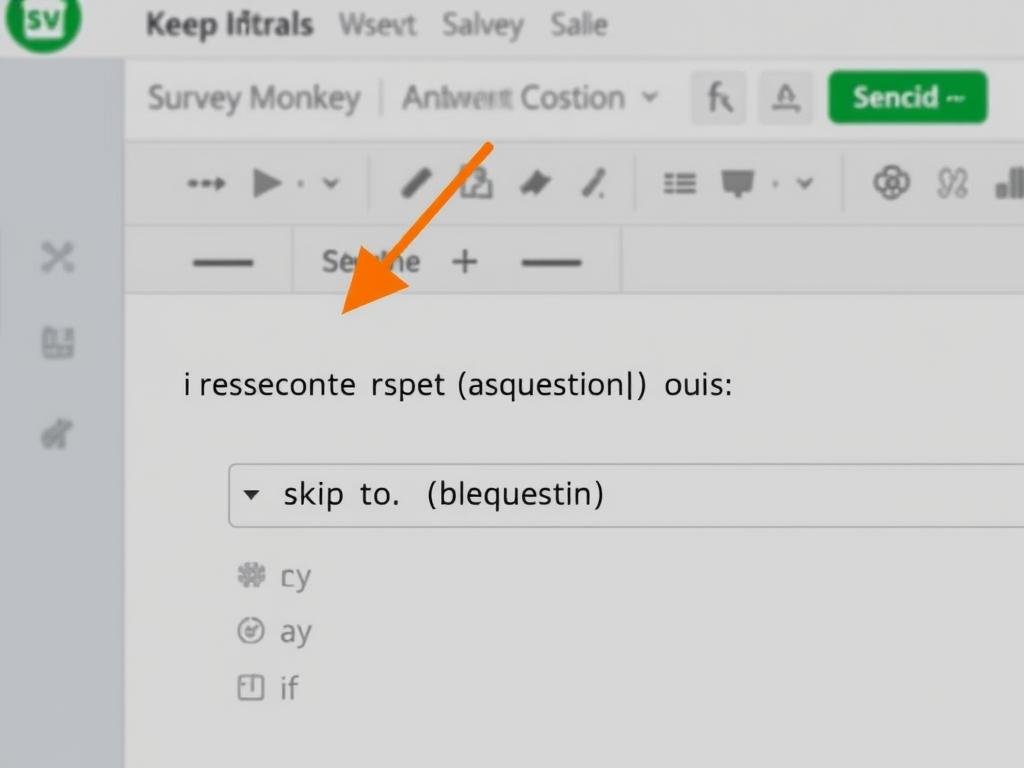
Advanced logic features are available in paid plans, allowing for more complex survey flows and conditional logic. These features help you create sophisticated surveys that gather precisely the information you need while providing a smooth experience for respondents.
Step 6: Distributing Your Survey
Once your survey is ready, it’s time to share it with your target audience. SurveyMonkey offers multiple distribution methods to help you reach respondents effectively.
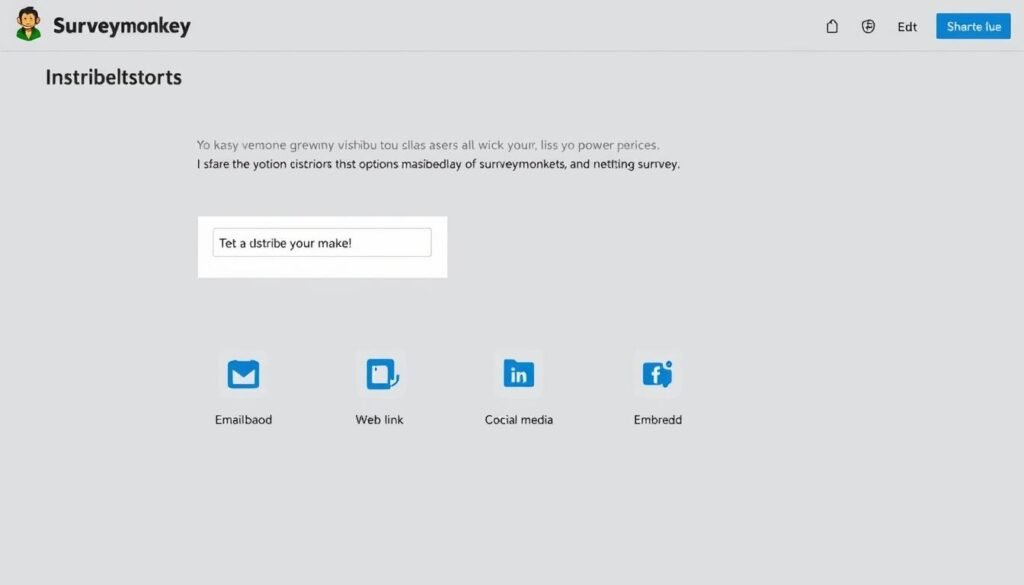
Survey Distribution Methods
Web Link
Generate a unique URL that you can share anywhere—in emails, messages, or social media posts. This is the most versatile distribution method.
How to use: Click “Collect Responses” > “Web Link” > Copy the generated URL
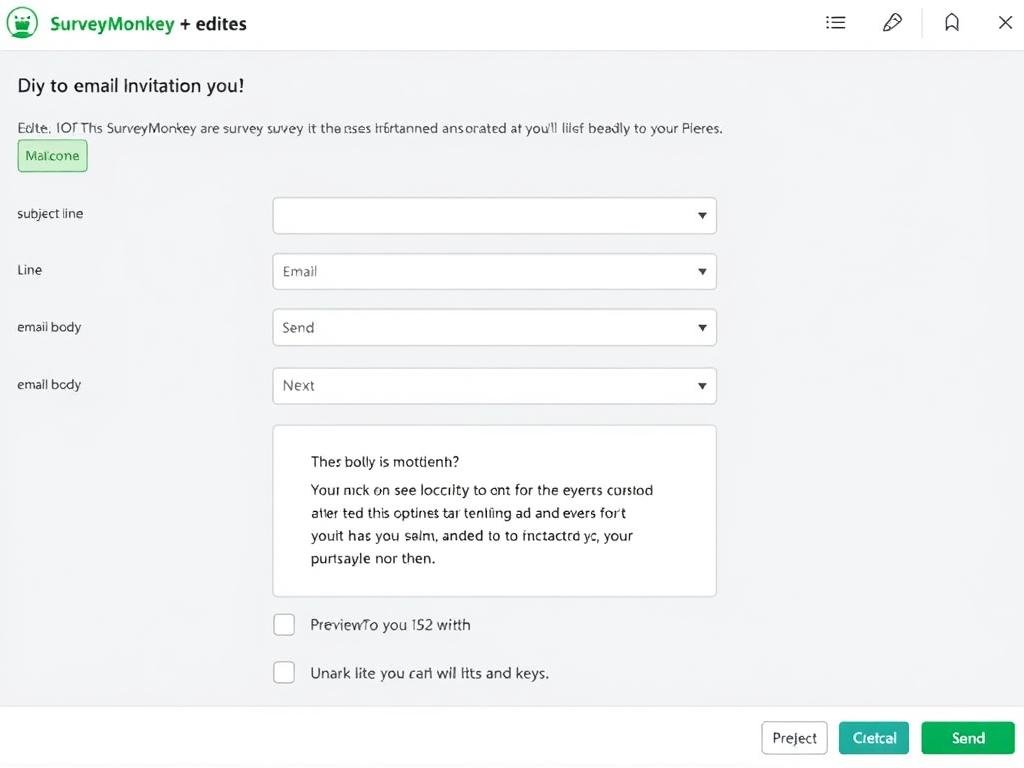
Send survey invitations directly from SurveyMonkey to your contact list. Track who has responded and send reminders to non-respondents.
How to use: Click “Collect Responses” > “Email” > Upload contacts or enter email addresses > Customize your message > Send
Social Media
Share your survey directly to Facebook, Twitter, or LinkedIn. This is great for reaching a broader audience quickly.
How to use: Click “Collect Responses” > “Social Media” > Select your platform > Customize your post > Share
Website Embedding
Embed your survey directly on your website or blog. This is ideal for customer feedback or site evaluation surveys.
How to use: Click “Collect Responses” > “Website” > Copy the embed code > Paste into your website HTML
QR Code
Generate a QR code that respondents can scan with their smartphones. Perfect for in-person events or printed materials.
How to use: Click “Collect Responses” > “Web Link” > “QR Code” > Download the generated code
SurveyMonkey Audience
Purchase responses from SurveyMonkey’s panel of respondents. This is useful when you need specific demographics but don’t have your own contact list.
How to use: Click “Collect Responses” > “Buy Responses” > Define your target audience > Purchase
Best Practices for Survey Distribution
- Set a clear deadline to create urgency and encourage prompt responses
- Send reminders to non-respondents 3-5 days after the initial invitation
- Personalize invitations when possible to increase response rates
- Be transparent about the survey’s purpose and time commitment
- Consider offering incentives for completion to boost participation
- Test your distribution method before sending to your entire audience
Ready to collect valuable feedback?
Start distributing your survey and gathering insights today.
Create Your Survey NowStep 7: Analyzing Survey Results
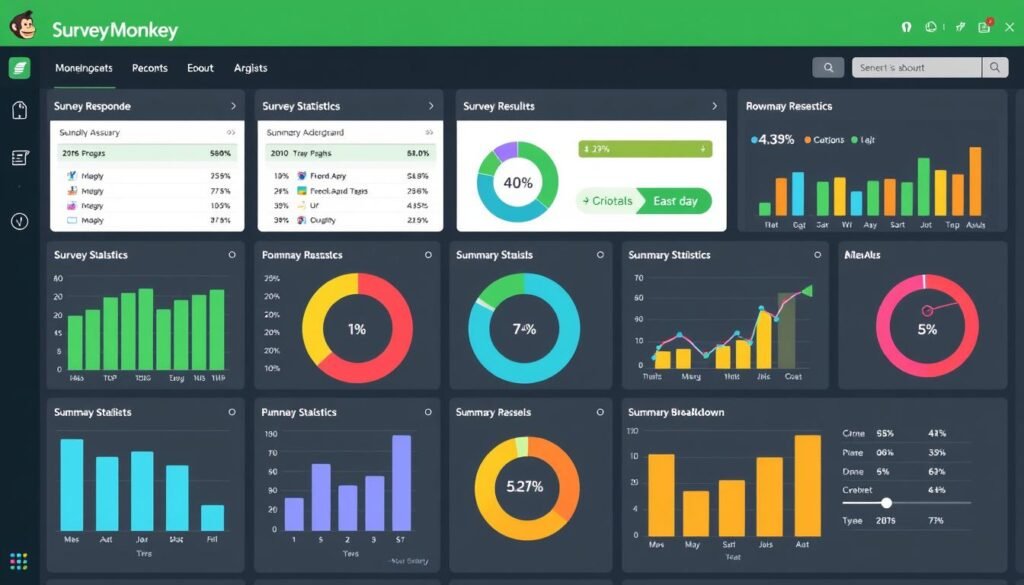
Once responses start coming in, SurveyMonkey provides powerful tools to analyze and interpret your data. Understanding these features helps you extract meaningful insights from your survey results.
Key Analysis Features
Data Summary
- View response counts and completion rates
- See question-by-question breakdowns
- Analyze trends with visual charts and graphs
- Export raw data for external analysis
Advanced Analysis
- Filter responses by specific criteria
- Compare results across different segments
- Create custom charts and visualizations
- Generate word clouds from open-ended responses
How to Access and Analyze Results
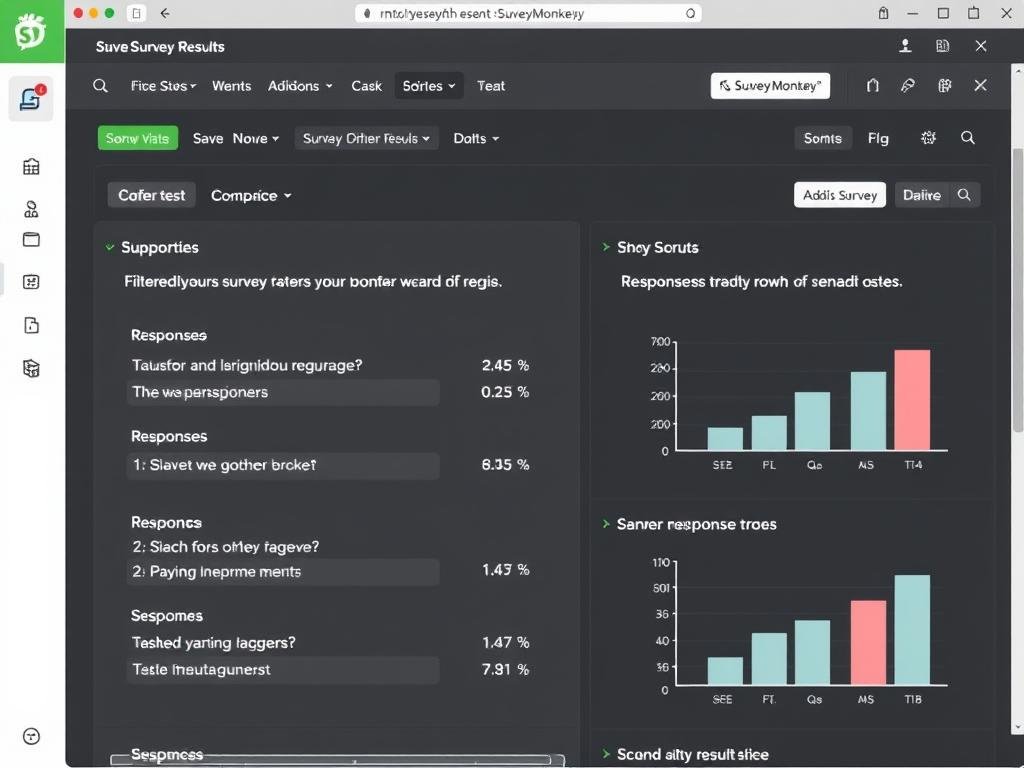
- Click the “Analyze Results” tab in your survey
- View the summary data for all questions
- Click on individual questions to see detailed breakdowns
- Use the “Filter” option to segment responses by specific criteria
- Click “Create Chart” to generate custom visualizations
- Use “Export” to download your data in various formats
Sharing Results with Stakeholders
SurveyMonkey makes it easy to share insights with team members or clients:
- Create custom reports highlighting key findings
- Share a direct link to results with specific permissions
- Export to PDF or PowerPoint for presentations
- Schedule automated reports to be sent regularly (paid plans)
- Download raw data in Excel or CSV format for deeper analysis
Pro Tip: When analyzing open-ended responses, look for recurring themes and keywords. SurveyMonkey’s text analysis tools can help identify patterns in qualitative feedback that might otherwise be missed.
Best Practices for Creating Effective Surveys

To maximize response rates and gather high-quality data, follow these expert-recommended survey best practices:
Writing Effective Survey Questions
Do’s
- Keep questions clear, concise, and specific
- Use simple language accessible to all respondents
- Ask one thing per question to avoid confusion
- Provide balanced answer options
- Include “Not applicable” or “Other” options when relevant
Don’ts
- Avoid leading or biased questions that suggest answers
- Don’t use double negatives or complex phrasing
- Avoid industry jargon or technical terms
- Don’t ask hypothetical questions that are difficult to answer
- Avoid overlapping answer options in multiple choice questions
Survey Structure and Flow
- Start with engaging questions to draw respondents in
- Group related questions together for logical flow
- Place demographic questions at the end to avoid early abandonment
- Limit survey length to 5-10 minutes for optimal completion rates
- Use progress indicators to show respondents how much remains
- Test your survey with a small group before full distribution
Timing and Follow-up
- Send surveys on Tuesday-Thursday for optimal response rates
- Avoid holiday periods when people are less likely to respond
- Send reminder emails to non-respondents after 3-5 days
- Limit reminders to 2-3 to avoid annoying recipients
- Send thank you messages to those who complete your survey
- Share key findings with respondents when appropriate
Survey Length Matters: Research shows that survey completion rates drop significantly after 7-8 minutes. Keep your surveys focused on essential questions to maximize response rates and data quality.
Conclusion: Start Creating Impactful Surveys Today
Creating effective online surveys with SurveyMonkey is a straightforward process that can yield valuable insights for your business or organization. By following the steps outlined in this guide—from account setup to results analysis—you can design professional surveys that engage respondents and generate actionable data.
Remember that survey creation is both an art and a science. While the technical aspects of using SurveyMonkey are important, equally crucial are the principles of good survey design: clear questions, logical flow, appropriate length, and thoughtful analysis.
As you gain experience, you’ll develop a better understanding of what works for your specific audience and objectives. Don’t be afraid to experiment with different question types, distribution methods, and analysis techniques to optimize your results over time.
Ready to create your own online survey?
Start collecting valuable insights with SurveyMonkey’s powerful and user-friendly platform.
Get Started with SurveyMonkey Today
Frequently Asked Questions
Is SurveyMonkey completely free to use?
SurveyMonkey offers a free Basic plan that allows you to create unlimited surveys with up to 10 questions and collect up to 40 responses per survey. For more extensive needs, paid plans provide unlimited questions, higher response limits, advanced logic, custom branding, and enhanced analysis tools.
How long should my survey be?
For optimal completion rates, aim to keep your survey under 5-10 minutes. This typically translates to about 10-15 questions, depending on complexity. Longer surveys tend to have higher abandonment rates, potentially compromising your data quality.
Can I embed images or videos in my survey?
Yes, SurveyMonkey allows you to embed images and videos in your surveys. This can be particularly useful for product testing, concept evaluation, or providing visual context for questions. To add media, use the “Image/Video” option when editing a question.
How can I increase my survey response rates?
To boost response rates: keep surveys concise, clearly communicate the purpose and time commitment, personalize invitations when possible, send reminders to non-respondents, consider offering incentives, and ensure your survey is mobile-friendly for on-the-go completion.
Can I export my survey data for analysis in other programs?
Yes, SurveyMonkey allows you to export your data in multiple formats, including Excel, CSV, PDF, and PowerPoint. This flexibility enables you to perform advanced analysis in your preferred statistical software or create custom presentations for stakeholders.