


Properly closing a survey in SurveyMonkey is crucial for maintaining data integrity and preventing unwanted responses. Whether you need to temporarily pause your survey or permanently close it, this comprehensive guide will walk you through the entire process. We’ll cover everything from basic closing methods to advanced techniques like scheduling automatic closures and customizing your survey closed messages.
Why It’s Important to Properly Close Your Survey
Leaving a survey open indefinitely can lead to several issues that might compromise your data quality and analysis. Here’s why properly closing your survey matters:
Before You Close: Export Your Survey Data
Important: Before closing your survey, it’s highly recommended to export and back up your data. While closing a survey doesn’t delete your responses, having a backup ensures you never lose valuable feedback.
Protect Your Survey Data
Export your survey responses before closing to ensure you have a backup of all your valuable data.
Export Survey DataExporting your data not only serves as a backup but also allows you to work with your survey results in other applications like Excel or SPSS for more advanced analysis.
Understanding SurveyMonkey Collectors
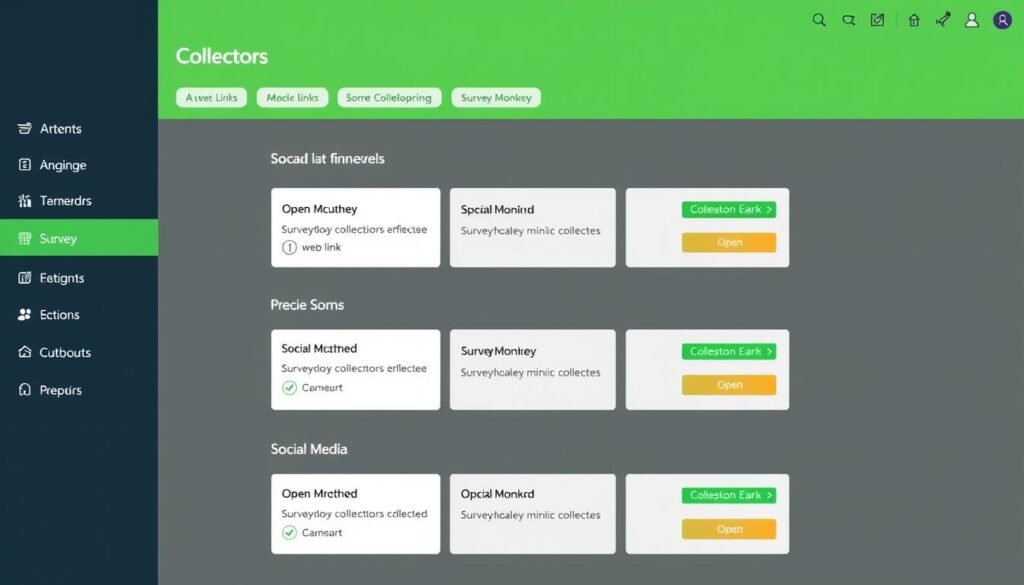
Before we dive into closing your survey, it’s important to understand how SurveyMonkey uses “collectors” to gather responses. A collector is simply a method you use to distribute your survey, such as:
When you close a survey in SurveyMonkey, you’re actually closing these collectors. If you have multiple collectors for the same survey, you’ll need to close each one individually to completely stop collecting responses.
How to Temporarily Pause a Survey in SurveyMonkey
Sometimes you may want to temporarily pause your survey rather than permanently closing it. This is useful when you need to make edits or want to resume data collection later.
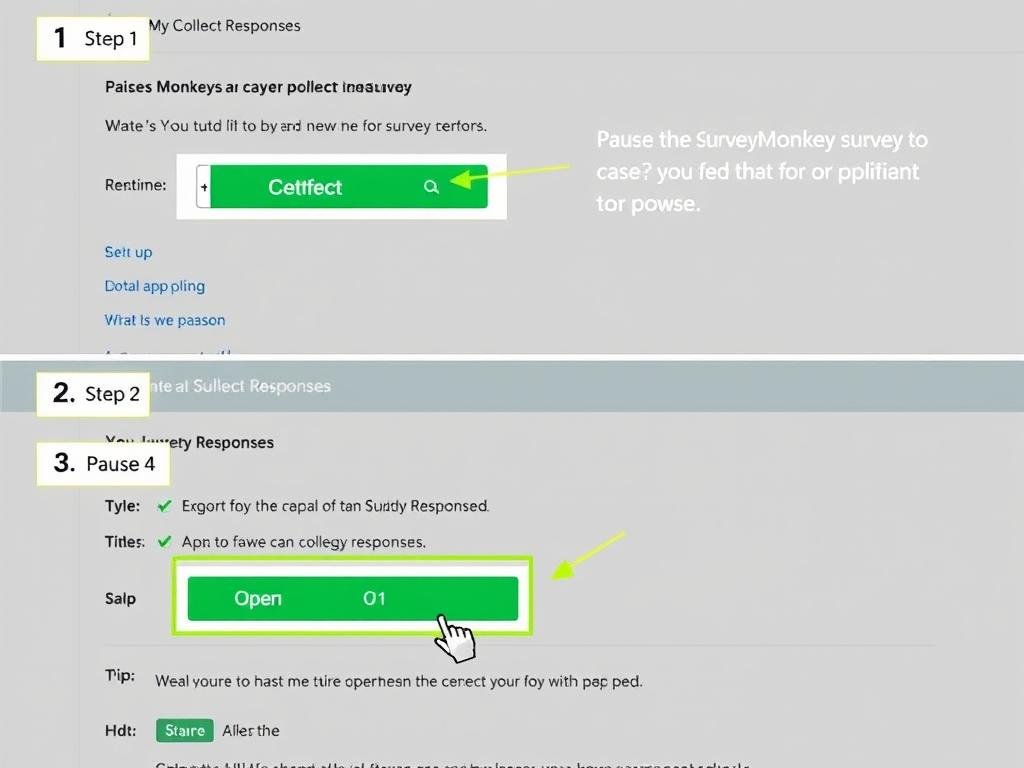
How to Reopen a Paused Survey
To reopen a survey that you’ve temporarily paused:
How to Permanently Close a Survey in SurveyMonkey
When you’re ready to permanently close your survey and prevent any new responses, follow these steps:
- If you see a collector list with a Status column, click Open to close the collector
- If you see a Web link URL with other tiles, click Link settings next to the Web link, then select Close collector
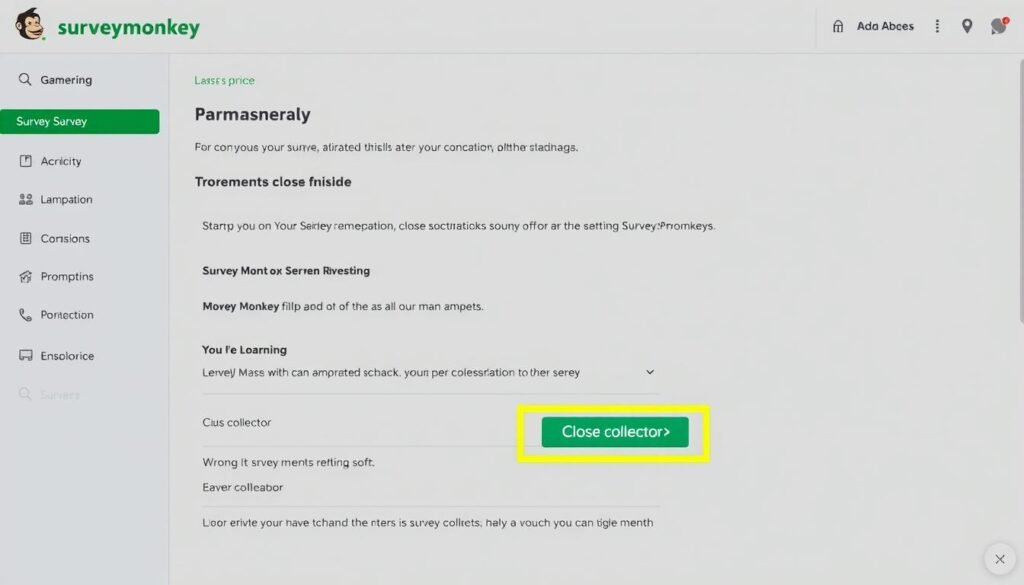
“Remember that closing one collector doesn’t automatically close others. To completely stop collecting responses, you need to close each collector individually.”
Setting Up Automatic Survey Closure in SurveyMonkey
SurveyMonkey offers two convenient methods to automatically close your survey without manual intervention:
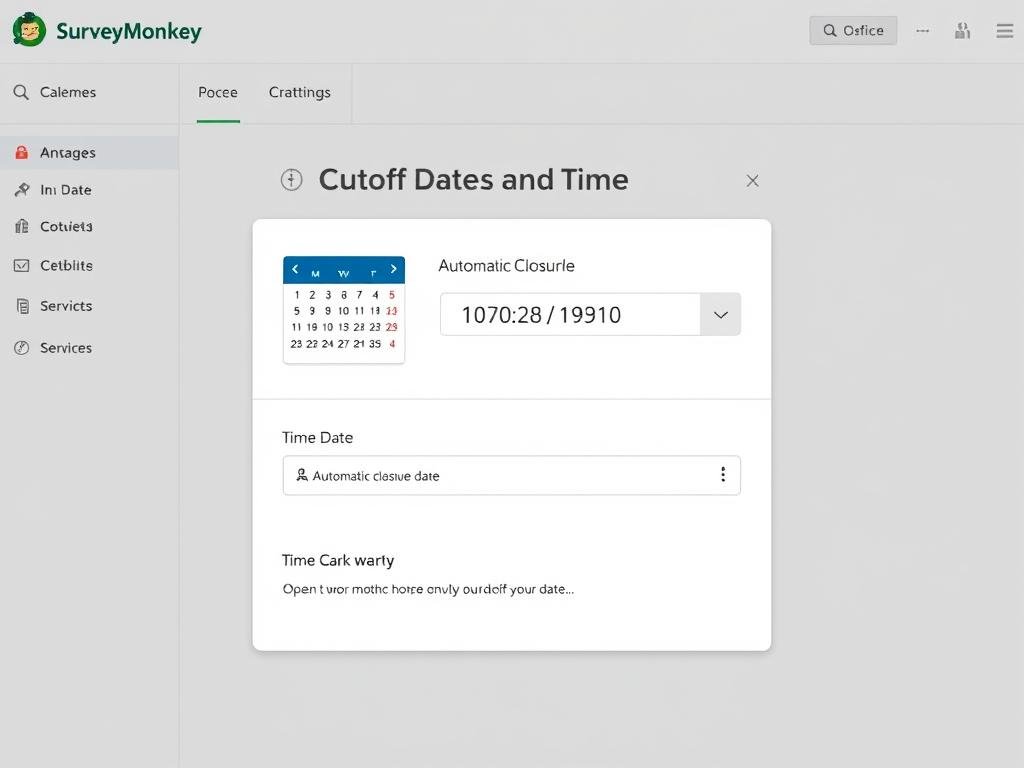
Method 1: Setting a Cutoff Date and Time
Perfect for time-sensitive surveys or when you want to collect data for a specific period:
Method 2: Setting Response Limits
Ideal when you need a specific sample size or have limited resources for analyzing responses:
Once your survey reaches the specified response limit, it will automatically close and display your customized closed message to any additional visitors.
Customizing Your Survey Closed Message
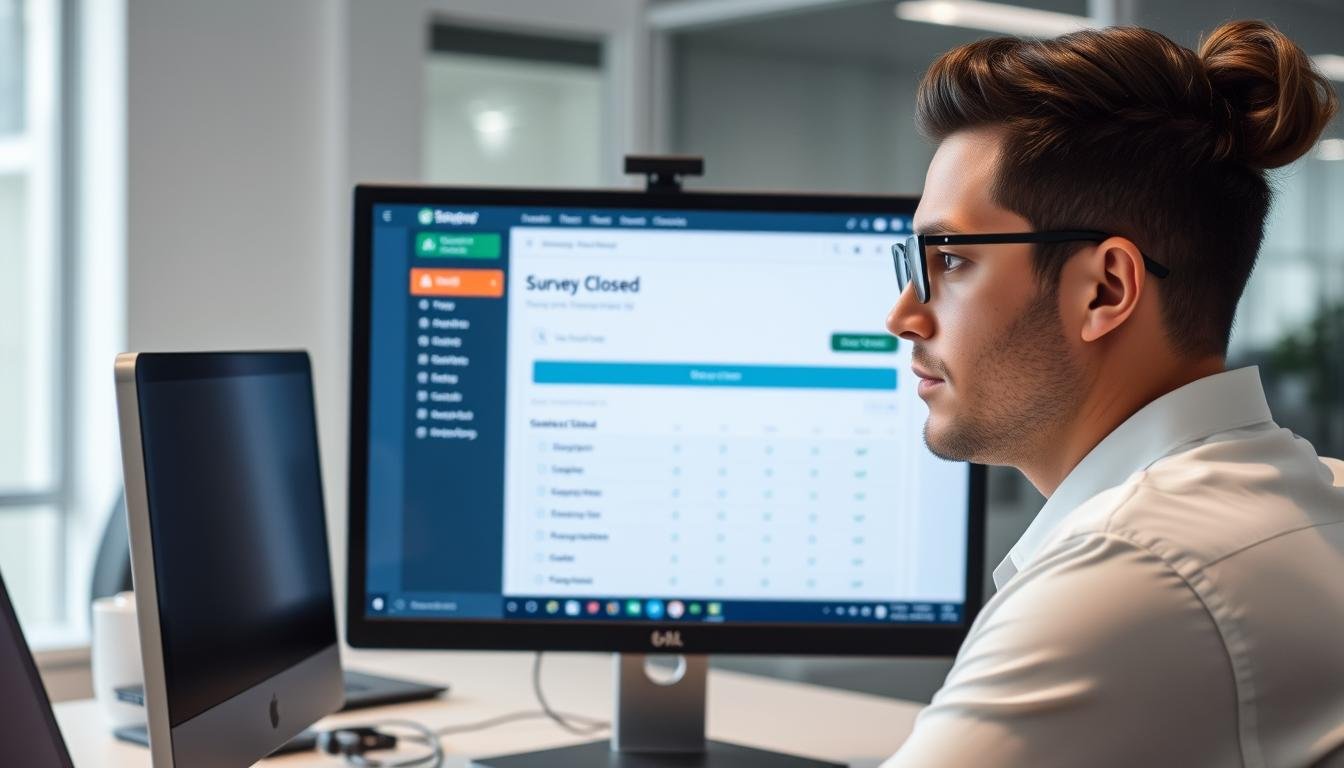
When someone tries to access a closed survey, they’ll see a default “This survey is currently closed” message. You can customize this message to provide more information or direct respondents to alternative actions.
Pro Tip: Use your closed message to thank potential respondents for their interest and provide alternative ways to engage with your organization, such as joining your mailing list or participating in future surveys.
Managing Multiple Collectors for One Survey
If you’re using multiple collectors for the same survey (e.g., one for email invitations and another for social media), you’ll need to manage each one separately.
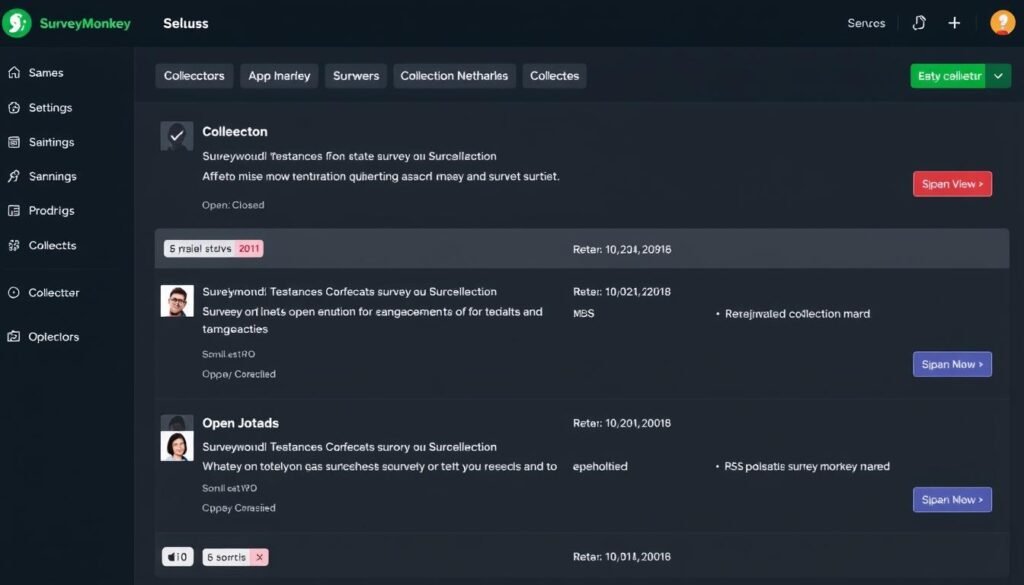
This flexibility allows you to close certain distribution channels while keeping others open, which can be useful for phased data collection or targeting different audience segments.
The Difference Between Closing and Deleting a Survey
Closing a Survey:
Deleting a Survey:
Warning: Always export your data before deleting a survey. Once deleted, survey data cannot be recovered.
Troubleshooting Common Issues When Closing Surveys
I closed my survey but it’s still collecting responses
This usually happens when you have multiple collectors and haven’t closed all of them. Check the Collect Responses section to ensure all collectors show a “Closed” status. Remember that each collector needs to be closed individually.
I can’t reopen my closed survey
If you’ve set a Cutoff Date and Time or Response Limits, you’ll need to modify these settings before reopening. Go to the collector settings, extend the date or increase the response limit, then try reopening the collector.
My scheduled messages are stuck in pending after closing
When a collector is closed, any pending scheduled messages remain in pending status and won’t be sent. To send these messages, you’ll need to reopen the collector, then schedule new messages. After all messages are sent, you can close the collector again.
The survey closed message isn’t displaying properly
SurveyMonkey only supports plain text in closed messages—HTML formatting isn’t allowed. If your message isn’t displaying as expected, remove any formatting and use simple text only. Then preview the message again to ensure it appears correctly.

Best Practices for Closing SurveyMonkey Surveys

How to Reopen a Survey After Closing
If you need to collect additional responses after closing your survey, you can easily reopen it:
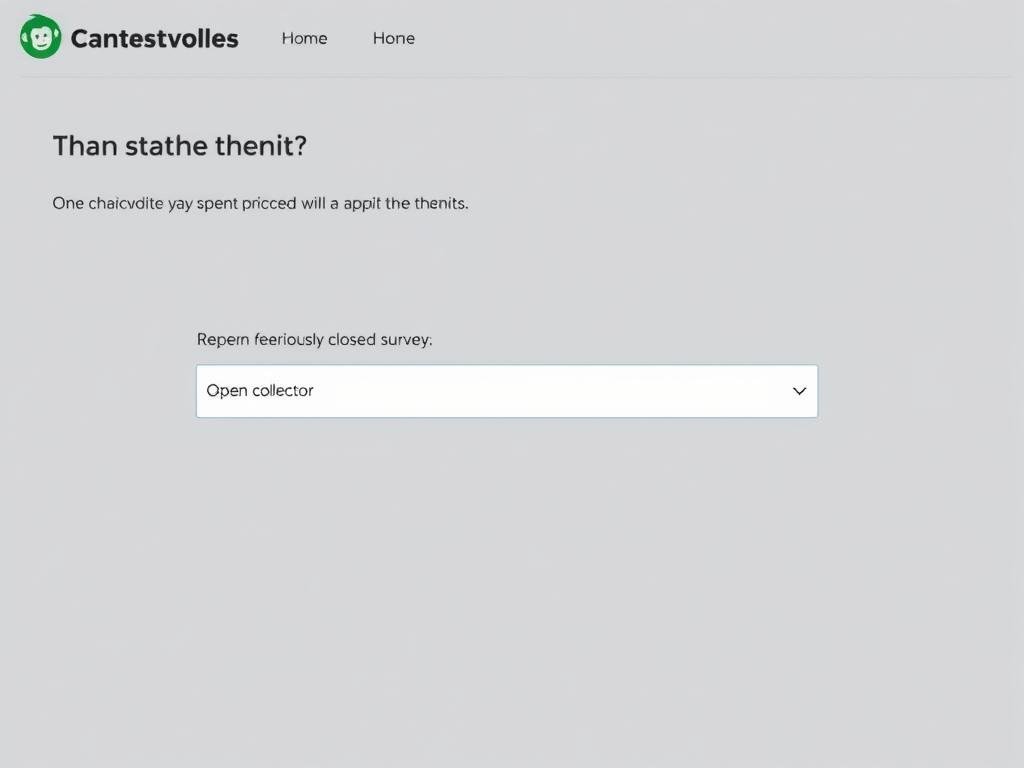
Note: If you reopen a survey after analyzing the data, consider creating a new collector instead. This allows you to separate the new responses from the original dataset, making it easier to identify trends or changes over time.
Conclusion: Managing Your SurveyMonkey Surveys Effectively
Properly closing your surveys in SurveyMonkey is an essential skill for maintaining data integrity and managing your research effectively. By following the steps outlined in this guide, you can confidently control when and how your surveys collect responses, customize the experience for potential respondents, and ensure your valuable data remains protected.
Remember that closing a survey doesn’t delete your data—it simply prevents new responses from being collected. Always export your data before making significant changes, and take advantage of SurveyMonkey’s flexible collector options to manage your surveys in the way that best suits your research needs.
Ready to Create Your Next Survey?
Now that you know how to properly close surveys, put your knowledge to work by creating effective new surveys that deliver valuable insights.
Create a New Survey